
Yes, you can watch IPTV on a Roku TV or Roku streaming stick, just not the way you would on a Fire TV Stick. Roku only lets you install apps from its own store, and it has no built-in player for IPTV playlists. This guide shows the three methods that work in 2026, which one to choose, and how to fix the problems most people run into.
Quick answer
- Best for most people: install an IPTV player app from the Roku store (Method 1).
- Fastest, nothing to install on the TV: screen mirroring or casting from your phone or PC (Method 2).
- Best picture and most stable: plug a Fire TV Stick or Android TV box into your Roku TV (Method 3).
Why IPTV Works Differently on Roku
An IPTV subscription doesn’t come as an app. It comes as login details, usually in one of two formats:
- M3U playlist URL: one long link that contains your channel list.
- Xtream Codes login: a server address, a username and a password. The player uses them to fetch channels, movies, series and the TV guide (EPG).
A player app reads those details, downloads the channel list and guide, and plays each stream. Behind the scenes, most streams arrive in small video chunks (HLS, the .m3u8 format) or as a continuous MPEG-TS stream.
On Android devices such as a Fire TV Stick, you can install almost any player. Roku runs Roku OS, a closed system: every app (Roku calls them “channels”) must be approved by Roku, and normal users can’t install apps from outside the store. Roku has removed IPTV players in the past, so the list of working apps changes. That’s why some guides from a year or two ago no longer work.
What You Need Before You Start
- Your IPTV login details (M3U URL or Xtream login). VIPTV Server sends them as soon as your free 24-hour trial or subscription starts.
- An up-to-date Roku: Settings › System › System update › Check now.
- A stable connection: about 10 Mbps for HD and 25 Mbps for 4K is a safe target. If your Roku TV has an Ethernet port, use it; otherwise use 5 GHz Wi-Fi. More in our IPTV internet speed guide.
- A phone or computer to activate the player app.
Method 1: Install an IPTV Player App From the Roku Store (Recommended)
These apps are players only: they contain no channels. You link your subscription to them. Most work the same way: the app shows a Device ID (sometimes called MAC) and a Device Key on the TV, and you enter those on the player’s website together with your IPTV login. Many offer a free trial period, then ask for a small one-time or yearly activation fee paid to the app developer, not to your IPTV provider.
Player apps listed in the Roku store in late 2026 include IBO Player and IPTV Smart Player. Availability changes, so search the store on your own Roku. For a wider comparison of players, see our guide to the best IPTV player apps in Canada.
- On your Roku remote, press Home and open the Streaming Store (called Streaming Channels on older Roku OS versions).
- Choose Search, type the player’s name and select Add app.
- Open the app and write down the Device ID and Device Key shown on screen.
- On your phone, go to the player’s official website (type the address shown inside the app; don’t search for it) and open its playlist upload page.
- Enter the Device ID and Key, choose Xtream Codes (or M3U), and paste your server URL, username and password exactly as you received them.
- Back on the Roku, close the app and open it again. Your channels load; the TV guide can take a few minutes the first time.
Safety tip: fake “activation” websites copy the look of popular players to collect logins and card details. Only use the website address displayed inside the app itself.
Method 2: Screen Mirroring or Casting From Your Phone or PC
Roku supports screen mirroring from Android and Windows devices, and AirPlay from iPhone, iPad and Mac on supported Roku models.
Turn it on (Roku): Home › Settings › System › Screen mirroring › Screen mirroring mode › choose Prompt or Always allow.
Then, from your device:
- Android: install your IPTV app (IPTV Smarters, for example), log in, then open Settings › Smart View, Screen cast or Quick Connect (the name depends on the phone brand) and pick your Roku.
- Windows: press Windows + K, or go to Settings › System › Display › Connect to a wireless display, and pick your Roku.
- iPhone / Mac: on Roku, open Settings › Apple AirPlay and HomeKit and turn AirPlay on; then use Screen Mirroring from Control Center.
Roku lists the limits itself: your phone must stay on the whole time, all controls happen on the phone, and the TV shows your entire screen including menus. Some phones, including Google Pixel models, may not support Roku mirroring. Expect lower quality than Methods 1 and 3, because the video is re-encoded on your phone and sent over Wi-Fi.
Better option: casting instead of mirroring. A casting app such as Web Video Caster sends the stream itself to a small receiver app on the Roku, so the Roku plays the video directly and your phone is free. Quality and battery life are much better than with mirroring.
Method 3: Plug a Fire TV Stick or Android TV Box Into Your Roku TV (Best Quality)
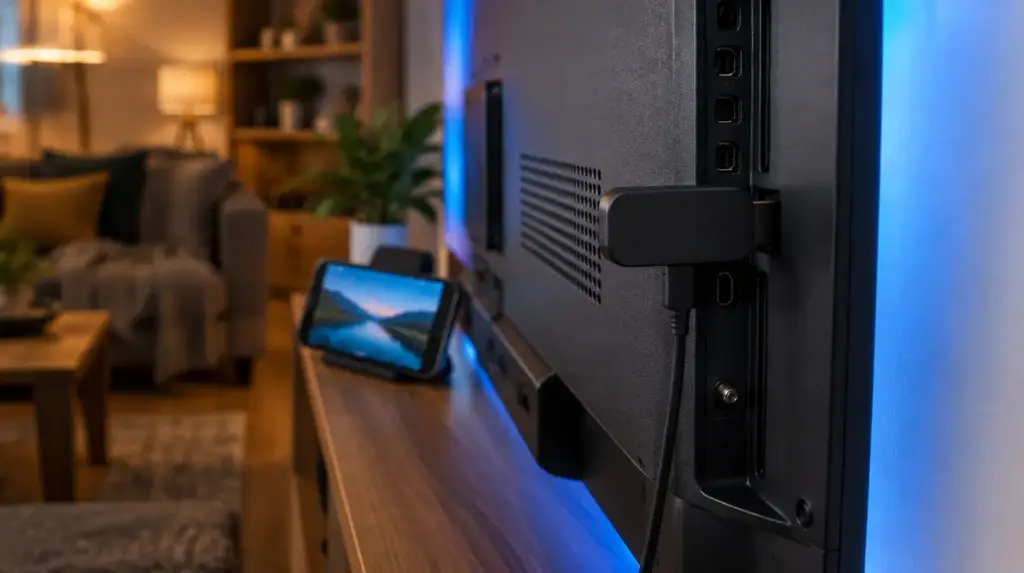
A Roku TV is still a normal TV with HDMI ports. Plugging a streaming stick into a free port gives you every IPTV app, the best TV guide, catch-up and the most stable playback.
- Plug the stick into an HDMI port. Use its own power adapter, not the TV’s USB port, to avoid random restarts.
- On the Roku TV, press Home and select the HDMI input tile.
- Install a player such as IPTV Smarters or TiviMate and log in with your details.
- Turn on HDMI-CEC (Settings › System › Control other devices) so one remote can switch inputs.
Step-by-step setup for each device is in our IPTV installation guide. Not sure which device to buy? Read the best IPTV box in Canada.
Which Method Should You Use?
| Method | Picture | Setup time | Extra cost | Stability | Best for |
|---|---|---|---|---|---|
| 1. Roku store player | Very good (up to 4K if the app supports it) | About 10 min | Small app activation fee (often) | Good; Roku can remove the app | Most Roku owners |
| 2a. Screen mirroring | Fair | About 2 min | None | Depends on phone and Wi-Fi | Occasional viewing |
| 2b. Casting app | Good | About 5 min | Free or small premium | Good | Phone users who want nothing installed on the TV |
| 3. Stick or box on HDMI | Best | About 15 min | Price of the device | Best | Sports fans, daily use |
Does IPTV Smarters Work on Roku?
Not directly. IPTV Smarters is built for Android, iOS, Windows, macOS and some smart TVs, and we could not confirm an official IPTV Smarters app in the Roku store. Apps with similar names may be unofficial copies. You can still use the same login three ways: enter your Xtream details in a Roku player app (Method 1), run Smarters on your phone and cast or mirror it (Method 2), or run Smarters on a Fire TV Stick plugged into your Roku TV (Method 3).
Fixing Common Problems
| Problem | Likely cause | Fix |
|---|---|---|
| Player app not in the store | Removed by Roku or not offered in Canada | Try another player, or use Method 3 |
| “Invalid playlist” or login failed | Typo in the URL (http/https, port number), expired plan, or too many devices | Copy-paste the details again; check your plan is active; close the app on other devices |
| Channel list loads but nothing plays | App cache or one bad server | Test the same login on your phone. If it works there, clear the Roku cache: press Home 5×, Up 1×, Rewind 2×, Fast-forward 2× (the Roku restarts) |
| Buffering | Weak Wi-Fi or a busy network | Use Ethernet or 5 GHz Wi-Fi, restart the router, pick the HD version of the channel |
| Fails only during big live games | Server overload, or your internet provider blocking that stream source | Test on mobile data; contact your provider’s support |
| Empty TV guide (EPG) | Guide not loaded yet or wrong time zone | Wait 5–10 minutes, refresh the EPG in the app, check the time zone setting |
| Mirroring won’t connect | Mode set to Never allow, or devices on different networks | Set mode to Always allow, put both devices on the same Wi-Fi, update Roku OS |
FAQ
Can you get IPTV on Roku in Canada?
Yes. The same three methods work in Canada, though the Canadian Roku store doesn’t always list the same apps as the US store.
Is there a free IPTV app for Roku?
Player apps are often free to try, then need a paid activation. The channels themselves always come from a subscription; free playlists found online are unreliable and usually unlicensed.
Does IPTV work on a Roku Express or Streaming Stick?
Yes, with Methods 1 and 2. For Method 3, plug a Fire TV Stick into another HDMI port on the same TV.
Why did my IPTV app disappear from my Roku?
Roku removes apps that break its store rules. When that happens, the app usually stops working too. Switch to another player or to Method 3.
Does VIPTV Server work on Roku?
Yes. Your VIPTV Server login works with Roku player apps that accept Xtream or M3U details, and with all three methods above. You can try it free for 24 hours before you subscribe.
Try VIPTV Server on your Roku free for 24 hours, no credit card required. Request your free trial and get your login in minutes.
Sources
- Roku Support: How to use screen mirroring (supported devices, settings path, limitations)